Volgatech.Kollektiv: An Hourly-Load Report From the Schedule, and Letters You Can Work With
Versions 0.5.4–0.5.6: the “Appendix to Form 28” as a .docx built from the schedule, with a topic plan that carries on from one report to the next; mail that no longer forgets its password or hangs on a dropped connection; links, phone numbers and dates in letters, a phishing warning, and pictures from the internet only on request.
In the ten days after the Liquid Glass theme, three versions of Volgatech.Kollektiv came out. Version 0.5.5 added a new section, the hourly-load report. Versions 0.5.4 and 0.5.6 are about mail: one makes it more reliable, the other turns a letter’s text from a picture into something you can work with. Along the way, matte glass got its own effect-strength slider.
Hourly load: the Form 28 report
A teacher who has classes paid by the hour hands in, for each period, the “Appendix to Form 28 — Report on the Types of Work Done”. It is a table: date, number of academic hours, group, type of class, discipline and topic. Everything but the topic is already in the schedule the app loads anyway. A new menu section, “Hourly load”, builds this report as a .docx.
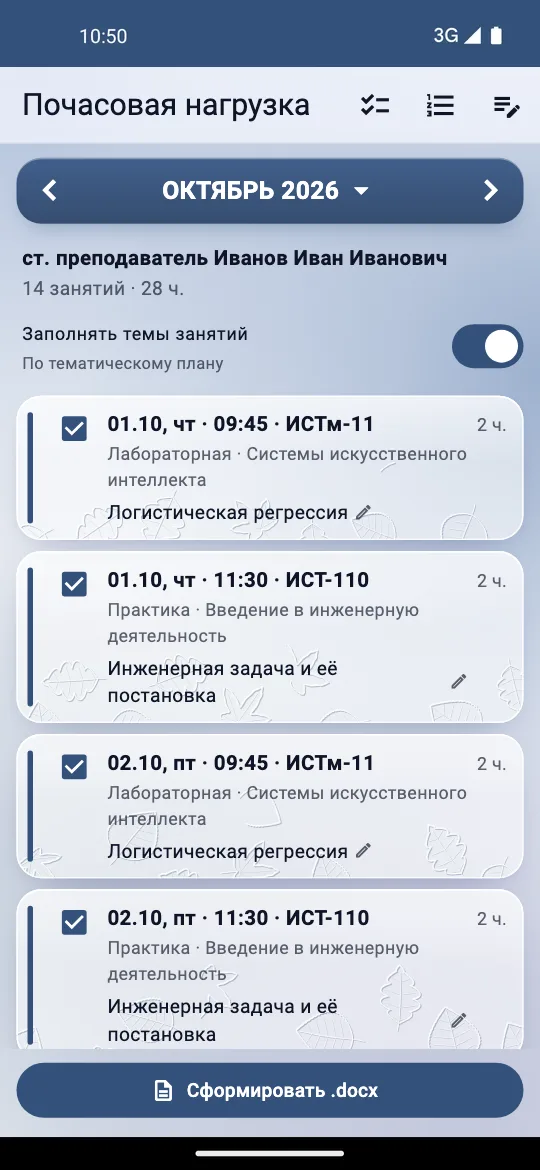
It takes three steps. In “Disciplines” you tick the semester’s disciplines with hourly load — whole, or only some of their groups. Then you pick a period on a grid of months: one month, several in a row or several apart. The app lists the classes in order: date, 2 hours, group, type (lecture, practical or lab) and discipline. Groups taught together are one class, credited once. The file is named the way the department names it, for example “… 02-03.26.docx”.
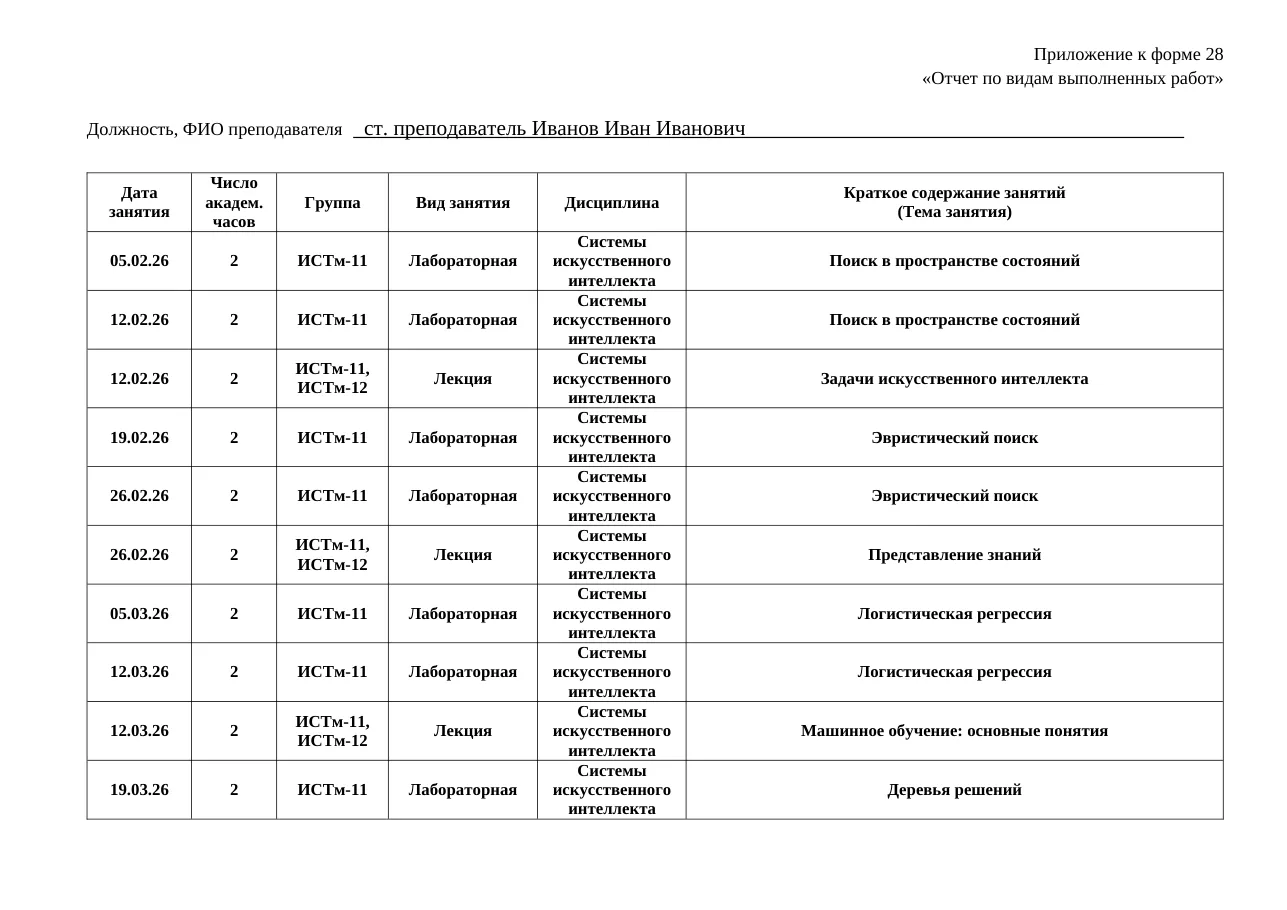
The document template was made from a real filled-in report of the department. A script replaced the names and data in it with markers, removed the author from the file’s properties and made the table’s header row repeat on every page. The logic itself — which classes go into the report and what topic each one gets — is written in plain Dart, with no Flutter, and is checked directly by unit tests.
Topics that carry on from report to report
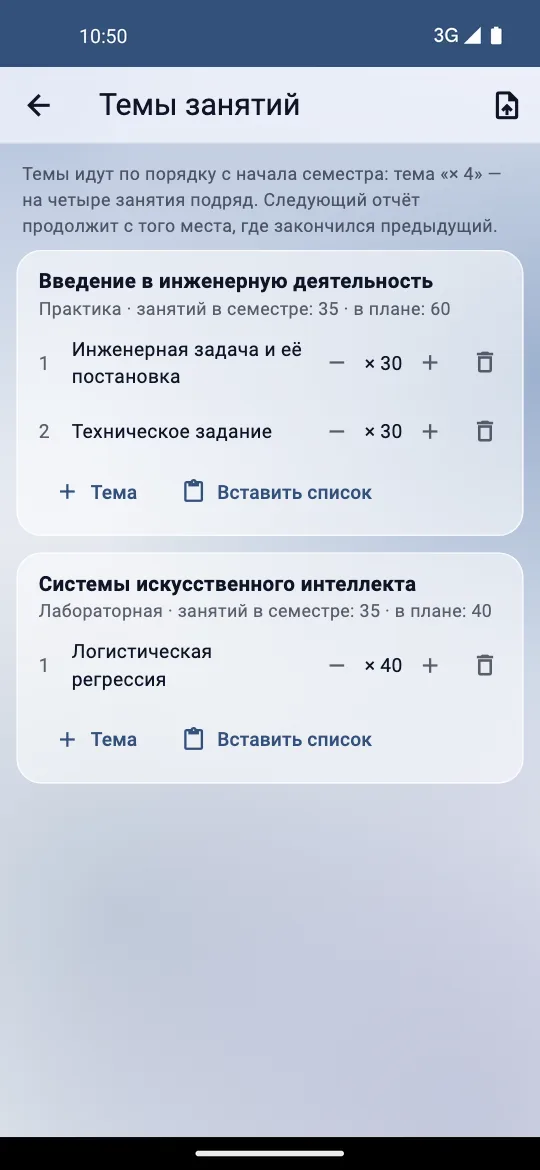
The hardest column in such a report is the topics. For it, “Class topics” holds a topic plan for each discipline and type of class: topics in order, each for so many classes in a row. A plan can be pasted as a list in the form “Pandas ×4” or taken from an earlier report in .docx.
Topics are counted from the start of the semester: spring runs from February to August, autumn from September to January. So the next month’s report continues the plan where the previous one stopped, and nothing has to be shifted by hand. Each group, or several groups taught together, goes through the plan on its own: if one group had more classes, its topics have moved further.
The topic of any class can be changed — for that class alone or for its whole topic. A class left out of the report takes no topic. With the “Fill in topics” switch off, the column stays empty to be filled in by hand. The line with the teacher’s position and name and the head of department’s signature are remembered.
Mail no longer forgets the password
Until version 0.5.4, a single refusal from the server wiped the saved mail password. A connection dropped while signing in, or the account locked for a minute, was enough — and new-mail notifications quietly stopped until the next manual sign-in.
Now the password is forgotten only on “Sign out” or when the server has taken a new one. A refusal of the saved password is checked once more on a fresh connection: NTLM authentication is bound to the connection, and the old one may already have been spoiled. If the server refuses again, the checks pause for an hour, then three, then twelve. A really wrong password, repeated by the app every few minutes, could lock the account in the university domain; this way it cannot.
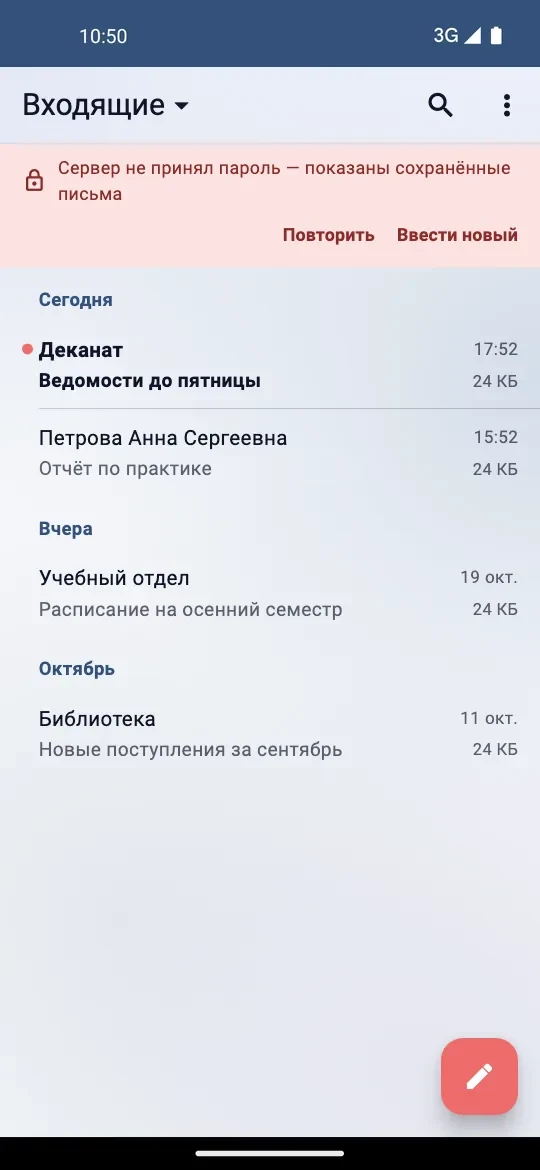
Instead of an empty sign-in form, the mail screen shows the saved letters and a “The server did not accept the password” strip with “Retry” and “Enter a new one” buttons. The background check shows one “Mail does not accept the password” notification and removes it once the server takes the password again. Each refusal goes to “Error reports”: the time and the server’s answer — the status, Exchange’s diagnostic header, the page title — but never the login or password. The phone’s password manager now understands the sign-in fields: it fills in the login and password and offers to save them only after a successful sign-in, never a pair the server rejected.
Refreshing without a restart
The second trouble was subtler. The Exchange session sends requests one at a time over one connection. Waiting for the response headers had a time limit, but reading the response body did not. When the connection died halfway through an answer — the app asleep in the background, the mobile network silently dropping it — the read waited forever, and every later request queued up behind it. Neither pull-to-refresh nor coming back to the app helped; only a restart did.
In version 0.5.5 every read gives up after 30 seconds of silence, and any network failure drops the connection, so the next request starts on a new one. After a long idle spell — say, when the system had frozen the app — the connection is not reused either. The time allowed for sending grows with the letter’s size at 50 KB/s, so a large attachment has time to go. And the open mail list looks for new mail by itself every two minutes.
Letters you can work with
Version 0.5.6 makes a letter’s text active. Links, addresses, phone numbers and dates are underlined, in HTML letters and in plain text alike. A tap opens a sheet of actions without leaving the app.
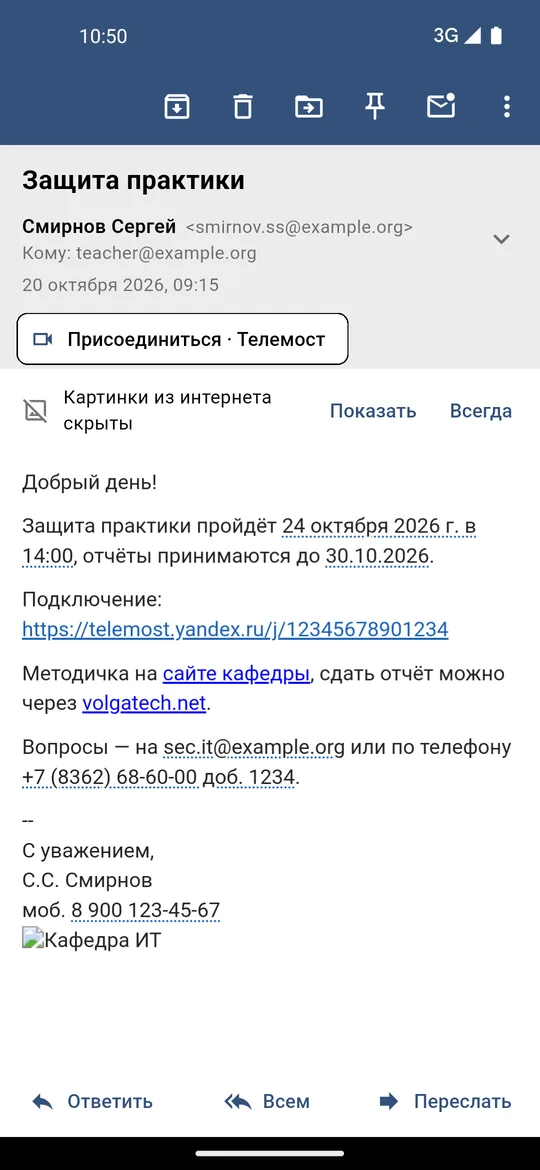
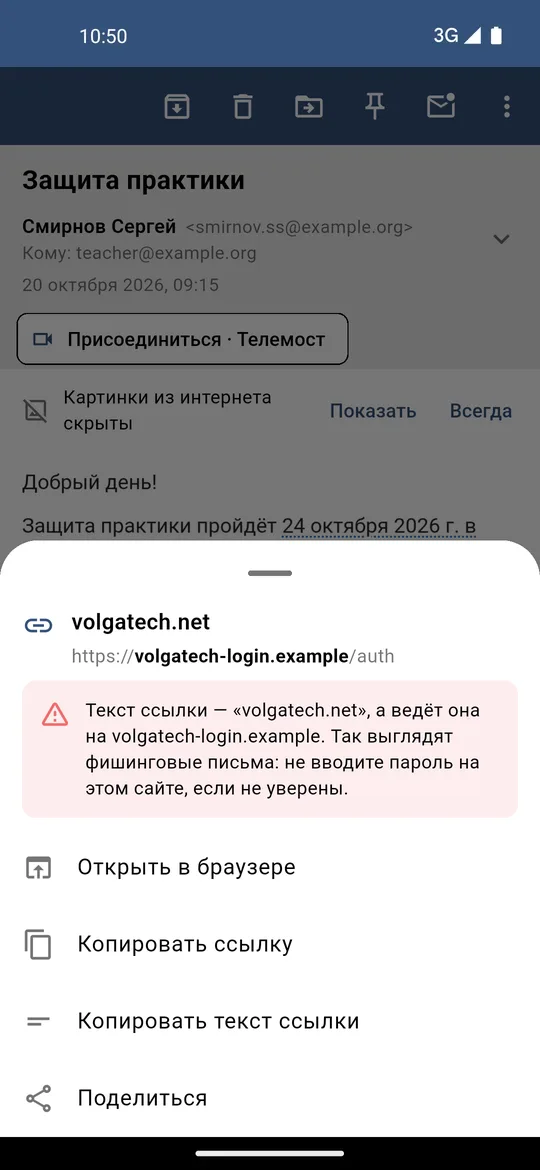
- A link shows its full address with the site in bold, and offers to open it, copy the address or the link’s text, or share it. When the link’s text names one site and the link leads to another, the sheet warns that this is how phishing letters look.
- A meeting invitation in Telemost, Kontur.Tolk, VK Calls, Zoom, Teams, Google Meet, SaluteJazz or MTS Link gets a “Join” button above the letter.
- A phone number is recognised as +7…, 8… and as a city number after “tel.”, with an extension: call, send an SMS, copy, add to contacts.
- An e-mail address opens a new letter right here in the app; a date can be added to the calendar.
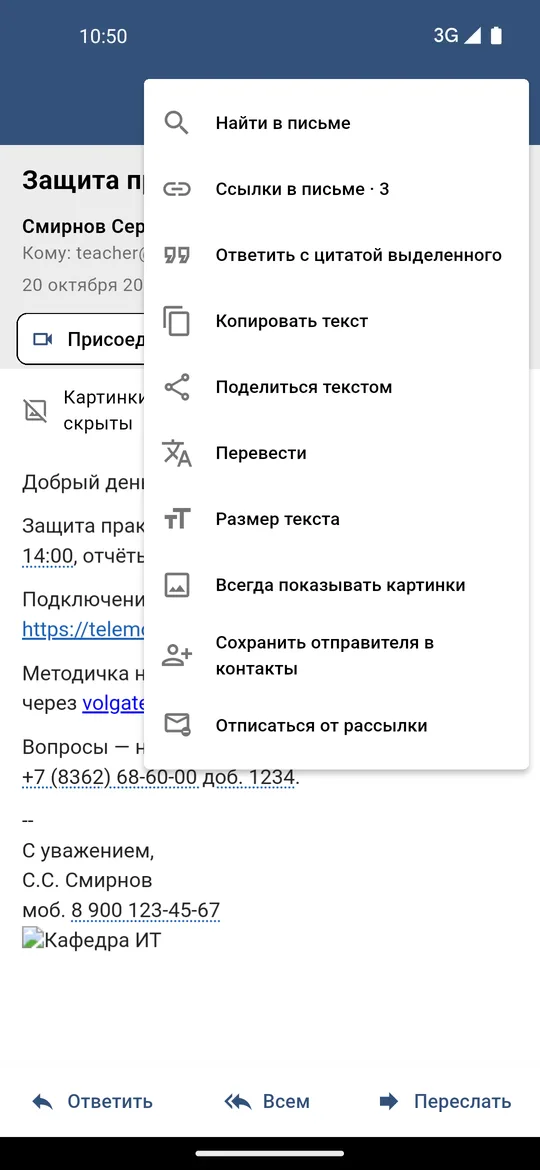
The letter’s “⋮” menu gathers the rest: find in the letter, a list of all its links, reply quoting the selected passage, copy, share and translate the text, text size, a dark letter in the dark theme, save the sender to contacts together with the phone number from the signature, and unsubscribe from a mailing list. Writing a letter gained “Templates” — phrases you often use, put in with one tap.
Pictures on request
Pictures from the internet in a letter now stay hidden until you tap “Show” for this letter, “Always” for this sender or “Always show pictures” in the menu. The reason is tracking: loading a picture tells the sender the letter was opened. In letters the server has marked *** SPAM ***, pictures load only by hand. They load over https only, and scripts in letters are still blocked. A tap on a picture opens it full screen, to zoom, save or share. Narrow table columns in letters also stopped breaking words in the middle.
Matte glass and an invisible button
The Liquid Glass theme’s matte glass got its own “Effect strength” slider: clear and matte glass each remember their value, and switching between them does not reset it. The contrast tests now run matte glass too, across the whole range from 100 to 0 %.
The last fix turned up in the browser version. Without glass, the “Save” button on the report-header page was the brand blue on a blue bar — that is, invisible. People left the header with “back”, and what they had typed was not saved. Now the button takes the colour of the bar’s text, and leaving with “back” saves the changed fields too.
Conclusions
- A report built from the schedule the app has already loaded saves not only time but copying mistakes: the date, group and type of class come from where the teacher sees them.
- A topic plan counted from the start of the semester turns the monthly report into a continuation of the previous one rather than new work.
- A saved password must not be wiped at the first refusal, nor repeated endlessly: a pause that grows with each refusal keeps the account from being locked.
- Every network read needs a time limit: without one, a single dropped connection stops the whole queue of requests.
- Pictures on request and a warning when a link’s text does not match its address are a cheap defence against tracking and phishing.
Availability
The hourly-load report is in every build from version 0.5.5; mail is in the app-mail-* builds. From version 0.5.1 the app offers updates by itself in “Settings” → “Updates”.
- Browser version: konkin-nikita.ru/volgatech.corp
- Android APK: github.com/nikita-konkin/volgatech.corp/releases
- Source code: github.com/nikita-konkin/volgatech.corp
Tags
More project updates
Volgatech.Kollektiv: Liquid Glass — Glass, Frost and Patterns of the Seasons
How the app gained its «Liquid Glass» theme: translucent panels over a coloured background, matte glass, frost made of fractal crystals and a pattern for the season — leaves, fr...
Volgatech.Kollektiv: Updates From Inside the App, a Version for iPhone and Computers, Reminders and a Widget
Versions 0.5.1 and 0.5.2: the app offers its own updates and checks the file before installing, runs in a browser — on an iPhone without the App Store and on a computer in a lay...